Learn the fundamentals of file input/output in Python, including opening, reading, writing, and closing files, as well as working with text and binary data, sequential and random access, and the os module for file system operations.
In any practical programming application, the ability to interact with data stored on a disk is essential. While console input and output are useful for testing, real-world workflows involve processing large datasets, configuration files, and specialized formats. Python provides a robust set of tools to handle these tasks, ranging from simple text manipulation to complex binary data processing.
The Basics of File Interaction
To work with a file in Python, you must follow a standard lifecycle: open the file, perform your read or write operations, and then close the file.
The open() Function and File Modes
The primary way to access a file is through the open() function. The syntax is as follows:
f = open(fileName, mode, buffering)
fileName: A required string containing the name of the file you wish to access.
mode: An optional string that dictates how the file is handled.
buffering: An optional integer for advanced use, controlling how data is cached in memory.
The mode parameter is critical because it determines whether you are reading, writing, or appending, and whether you are treating the file as text or binary.
Mode
Description
Behavior
'r' or 'rt'
Read Text
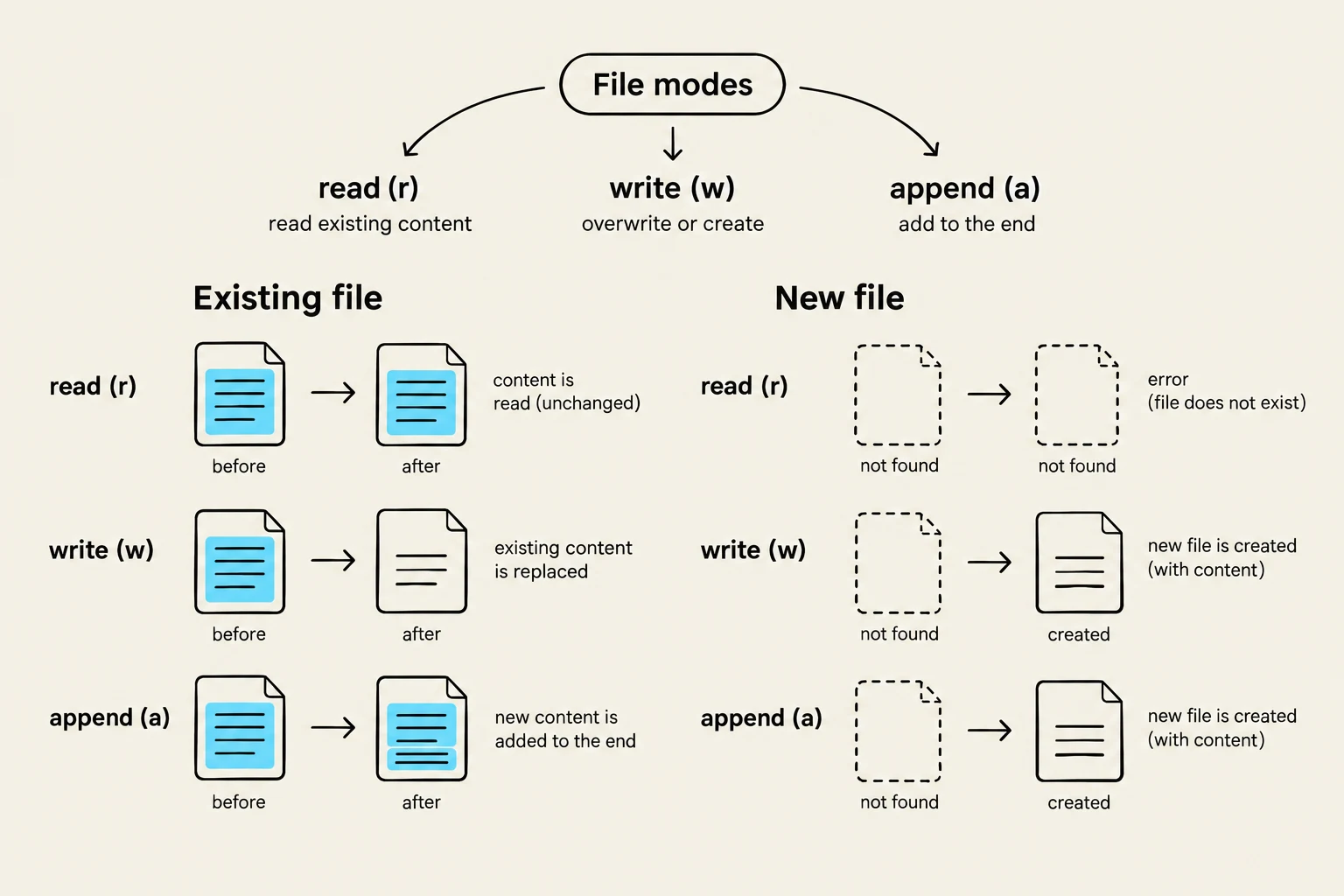
Opens for reading; default mode. Throws an I/O error if the file doesn't exist.
'w' or 'wt'
Write Text
Opens for writing. Creates a new file or overwrites an existing one.
'a'
Append
Opens for appending. New data is added to the end of the file.
'rb'
Read Binary
Opens the file in binary mode for reading.
Important Note on I/O Errors: If you attempt to open a non-existent file using the 'r' (read) mode, Python will raise an I/O error. Always ensure your file paths are correct before attempting to read.
This diagram illustrates the behavior of different file modes (read, write, append) when interacting with existing and new files in a computing context.
Text vs. Binary Data
Python distinguishes between text files and binary files.
Text processing is the most common task, where data is treated as a sequence of characters (strings). This is the default behavior when using modes like 'r' or 'w'.
Binary data, on the other hand, involves reading the raw bytes of a file. While you can open files in binary mode using 'rb', complex binary formats (like those used in GIS) often require specialized modules. For example, in Geographic Information Systems (GIS), instead of writing your own binary parser, you would typically use professional modules like GDAL, OGR, or ArcPy to handle complex spatial data.
Accessing Data: Sequential vs. Random
Once a file is open, you need to decide how to navigate through its contents.
Sequential Access
By default, Python uses sequential access. This means the program starts at the first byte and reads through the file in a continuous sequence. This is ideal for processing logs or CSV files where you need to examine every entry from start to finish.
Random Access
Python also supports random access, which allows you to move the "read/write head" (the cursor) to any arbitrary position within the file. Note that in this context, "random" does not mean statistically random; it simply means you can jump to any specific location without reading everything that came before it.
This diagram illustrates the concept of a file represented as a sequence of data blocks, with a head or cursor indicating the current position. The lower part of the diagram shows the movement of the head through the file, from the start towards the end.
Practical Implementation: Reading and Writing
Reading Methods
There are several ways to extract data from a text file:
The for loop: The most "Pythonic" way to read every line in a file object.
for line in file_object:
    print(line)
The while loop: Useful when using f.readline(), where you loop until readline() returns an empty string.
Specific methods:
f.read(nBytes): Reads up to n bytes.
f.readline(nBytes): Reads a single line.
f.readlines(nBytes): Reads all lines into a list.
Writing Methods
When saving data, you can use f.write(string) for single strings or f.writelines(list_of_strings) for a sequence of strings.
Pro-Tip: Buffering and Closing. When you call a write method, the data isn't always sent to the disk immediately; it is often held in an internal buffer for efficiency. To ensure all data is actually written to the file, you must call f.close().
A much safer way to handle files is using the with keyword. This ensures the file is closed automatically, even if an error occurs during processing:
with open('data.txt', 'r') as f:
    content = f.readlines()
# File is automatically closed here
Working with the Operating System
Beyond simple file reading, you may need to interact with the computer's file system—for example, to list files in a folder or rename a directory. For this, Python provides the os module.
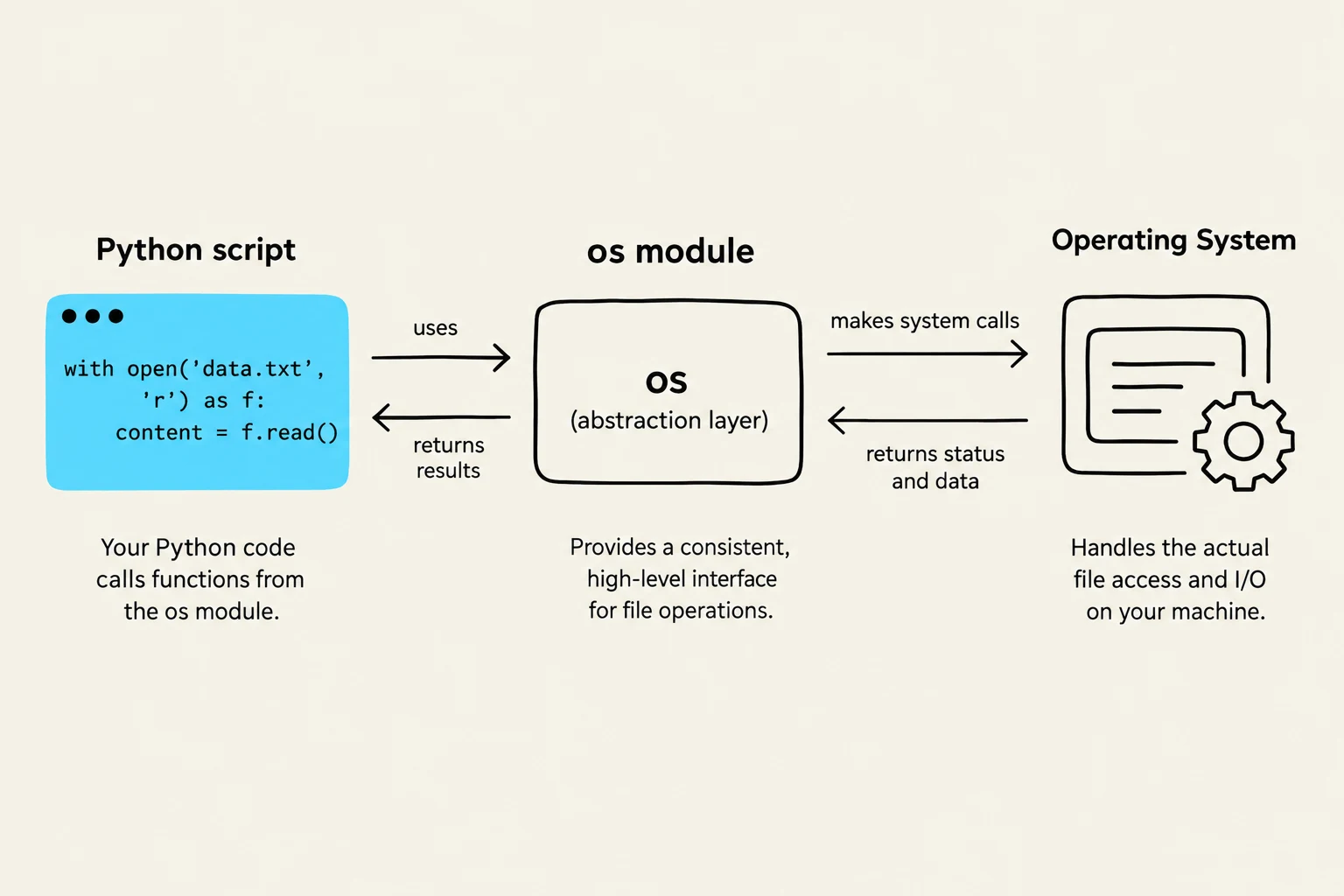
The os module acts as an abstraction layer, allowing your code to work across different operating systems. Useful methods include:
os.listdir(path): Returns a list of files in a directory.
os.path.exists(path): Checks if a file or folder exists.
os.remove(file): Deletes a file.
os.getcwd(): Returns the current working directory.
This diagram illustrates how a Python script interacts with the operating system's OS module to perform file operations. The script uses the OS module, which acts as an abstraction layer, to make system calls to the Operating System. The OS then handles the actual file access and I/O, returning status and data to the OS module, which in turn provides results back to the Python script.
By combining file I/O techniques with the os module, you can build powerful automation tools capable of managing entire datasets with minimal manual intervention.
Keep reading for free.
Create an account to finish this reading and make it part of your study routine.